
Your first map
This page takes you from the start screen to a generated map you have flown around, edited and saved. It assumes Creator has found your Rust install: if the start screen’s footer does not say Your Rust install, build, read Your Rust content first.
What you see when it opens
Section titled “What you see when it opens”Creator opens on its start screen, which is the launcher for everything you can do:
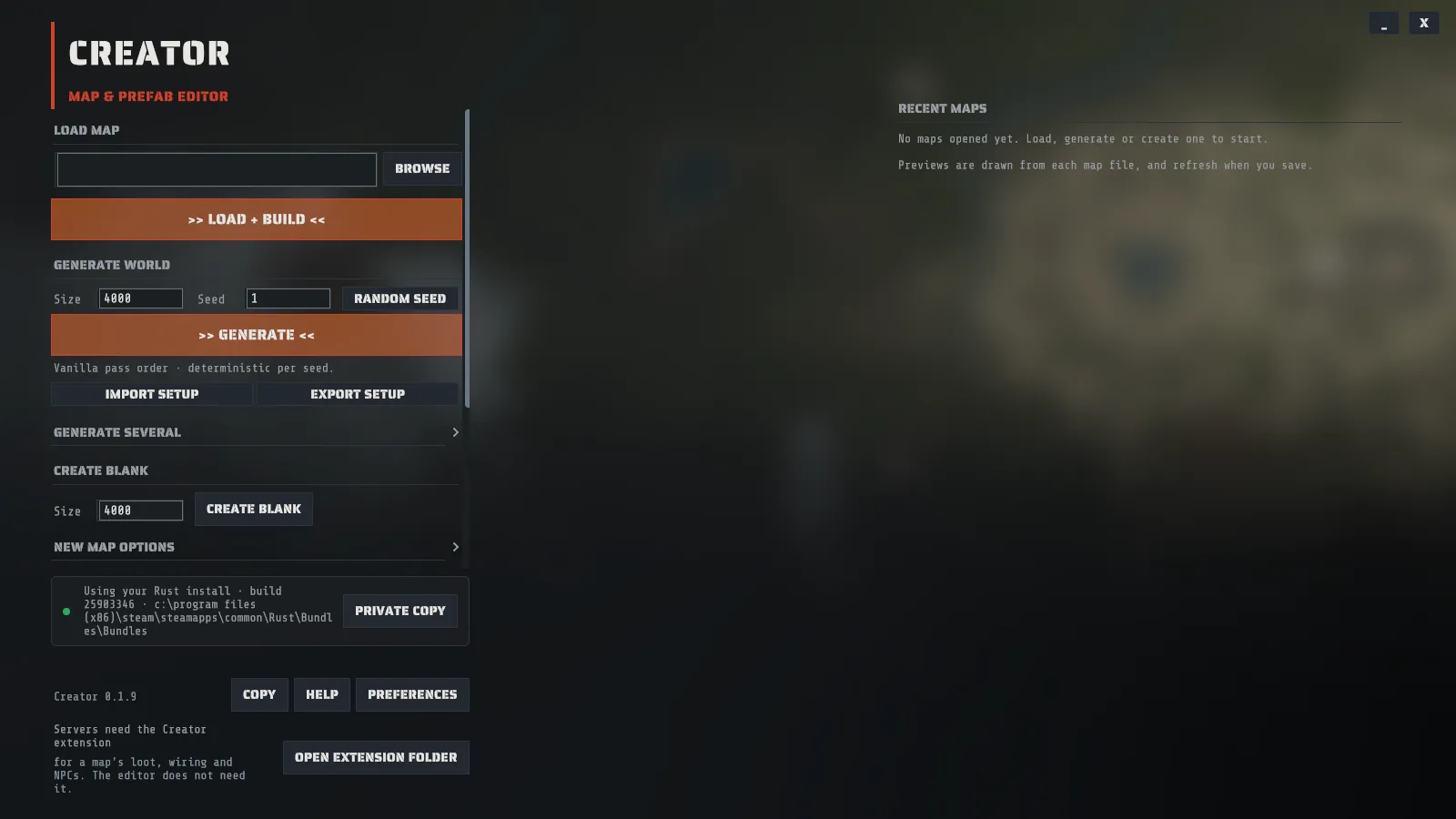
| GENERATE WORLD | Procedurally generate a new map. You pick a size and a seed. |
| CREATE BLANK | Empty terrain at a size you choose, with nothing placed. New Map Options under it sets what the empty map starts as. |
| LOAD MAP | Open an existing .map. |
| PREFAB WORKSPACE | Build a custom prefab out of Rust’s own pieces, with no map loaded. Cards for the packs you edited most recently sit under the button. |
| RECENT MAPS | Cards for maps you have opened before, each with a preview drawn from the map file itself. A map you generate joins the list when you save it. In a Creator started from the Crucible launcher, FROM CRUCIBLE HEIGHTMAP beside it shows Crucible Heightmap’s newest exports instead (see From Crucible Heightmap to Creator). |
New Map Options, for a blank map
Section titled “New Map Options, for a blank map”A blank map is flat ground 3 meters above the sea, Temperate, covered in Dirt. Click New Map Options under CREATE BLANK to start from something else:
| Option | What it sets |
|---|---|
| Starting height (m) | How high the flat ground sits, from -500 to 500. Sea level is 0, so a height below it starts the map as open water to raise land from |
| Starting biome | The biome the whole map starts as: Arid, Temperate, Tundra or Arctic |
| Starting texture | The ground texture the whole map starts with, any of the eight |
Leave them alone and CREATE BLANK makes the same map it always did. A biome or texture you pick here counts as yours: if you later run Procedural Generation on the map, its Biome Map or Splat Map row starts unticked and marked Already Generated, so the run keeps your choice unless you tick the row.
To start from a heightmap instead of flat ground, create the blank map and bring the file in: see Import a heightmap, which can also place the file into a height range and smooth it.
Generate a small one first
Section titled “Generate a small one first”Generate at 1000 or 2000 for your first map. A 4000 map is a large amount of work and you do not want to spend that wait learning where the buttons are. Sizes run from 1000 to 6000 meters.
- Click GENERATE WORLD.
- Type a size. 2000 is a good first number.
- Type a seed, any whole number. The same seed and size give you the same map again, as long as you are on the same Rust build. RANDOM SEED beside the box picks one for you, and you can still edit it.
- Start it.
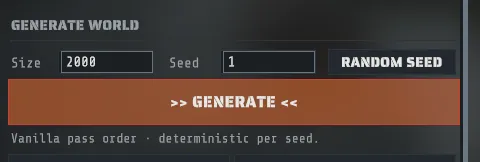
Under the button, Generate several opens a block that generates a whole list of seeds in one go and saves each map it keeps. It is closed to start with, and Generating several maps explains it.
While it runs
Section titled “While it runs”The loading screen shows the current pass, a progress bar and an elapsed timer. If the pass name and the counter move, it is working. You can minimize it to a pill and click that to get it back.
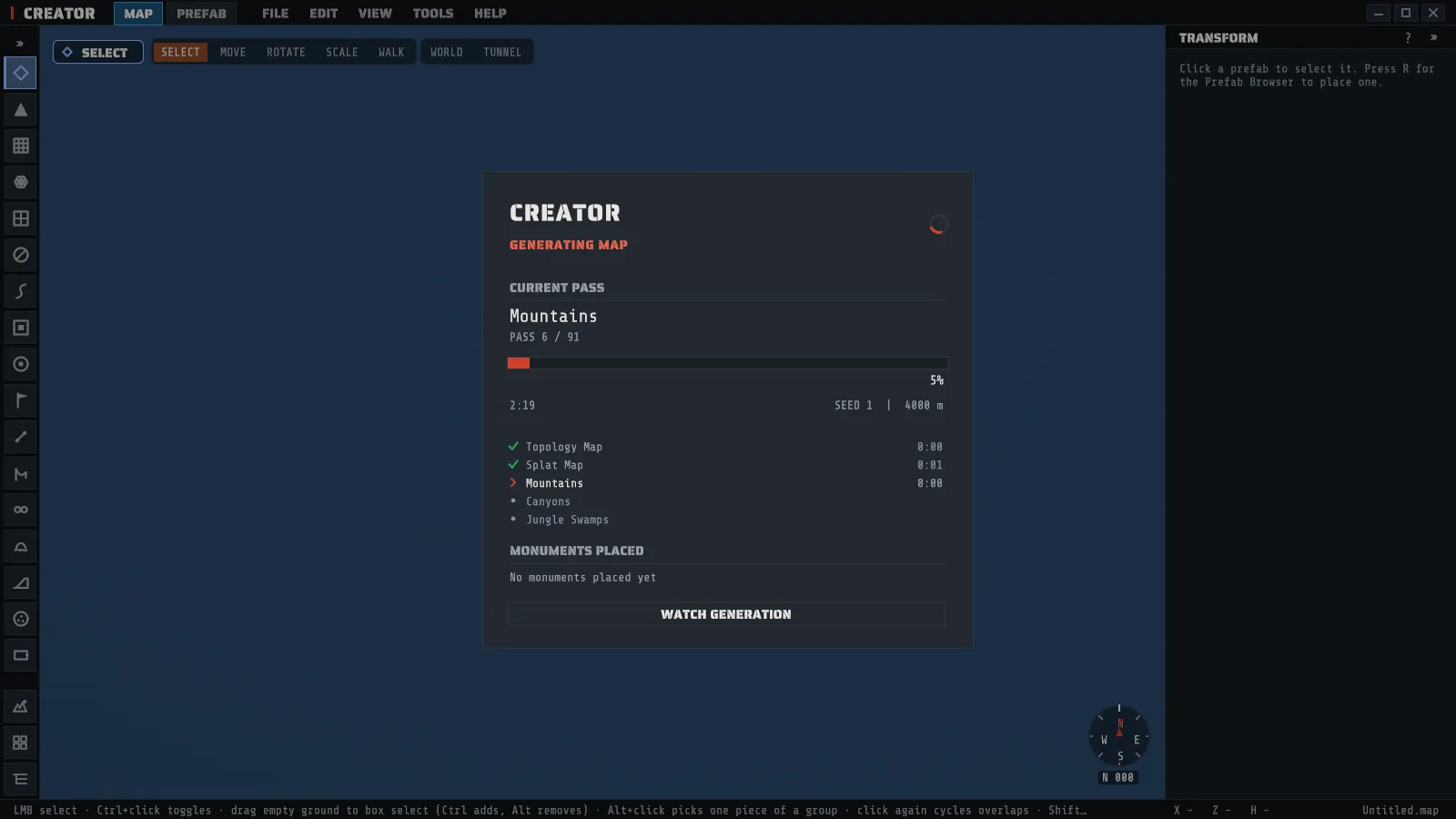
Generation runs through many steps, then places every prefab. Bigger maps take much longer. CANCEL on the loading screen stops the run after asking, and the partly built map is discarded; if the run is reading one of Rust’s scenes at that moment, the card says Stopping: finishing the scene it is reading until it is done.
The editor
Section titled “The editor”When it finishes you are in the editor, on the map.
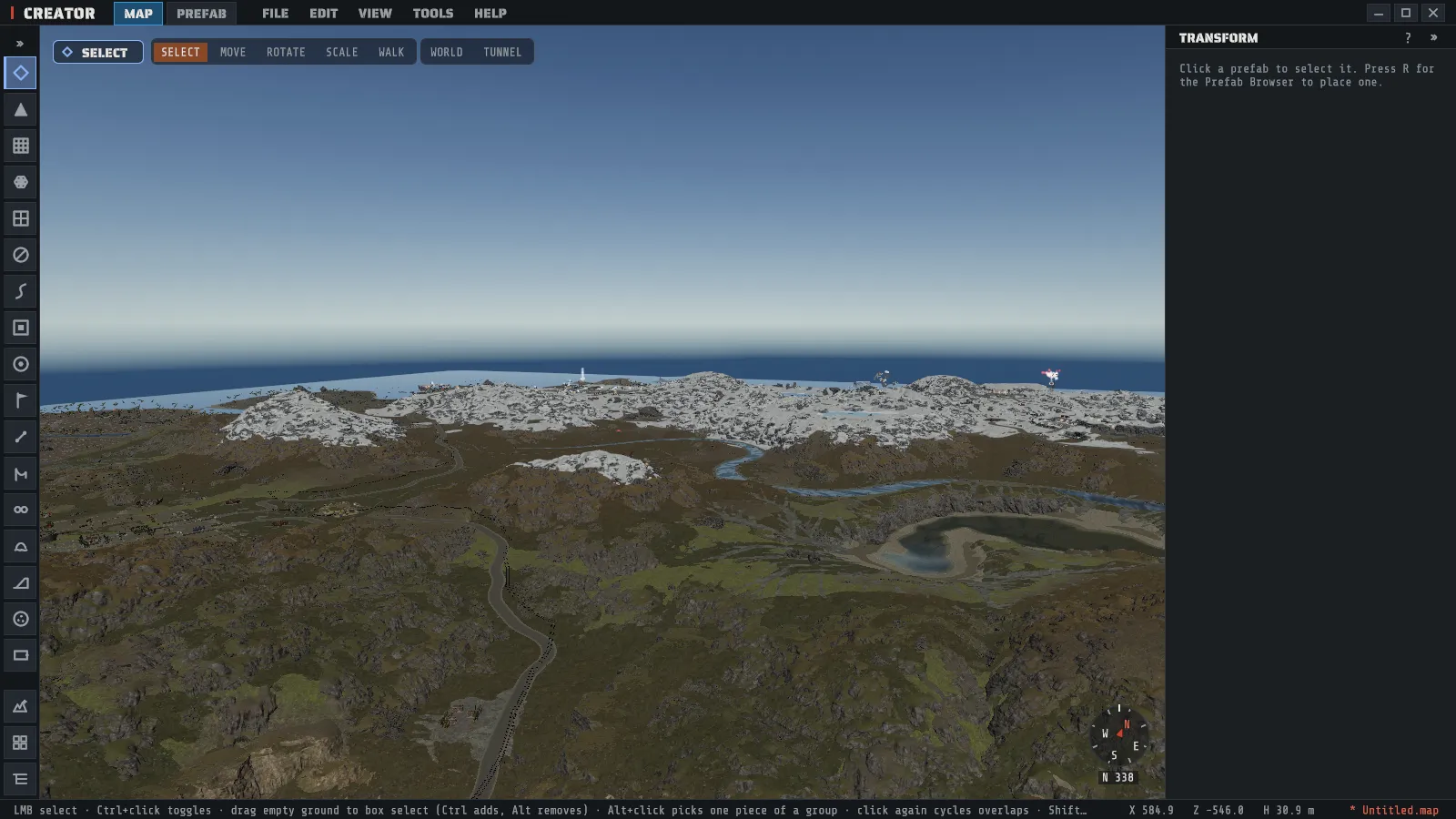
| Region | What it is |
|---|---|
| Menu bar | FILE, EDIT, VIEW, TOOLS, HELP. |
| Tool rail, left | One button per tool. The active tool’s inspector opens on the right. |
| Viewport | The map, drawn with Rust’s own assets. |
| Inspector dock, right | The selected thing, or the active tool’s settings. |
| Status bar, bottom | The active tool’s mouse grammar, your pointer’s world position and height, and the open map with its unsaved dot. |
Every tool’s exact mouse grammar is on Tools and mouse grammar. The status bar itself shows the active tool’s mouse grammar, where your pointer is in the world, and which map is open, with a dot while it has unsaved changes.

Fly around
Section titled “Fly around”Hold the right mouse button to fly. While you hold it, W A S D move you, Q goes up and
E goes down. Let go and those same keys are tool shortcuts again, which is why holding the button
matters. Press F to frame what you have selected, or the whole map when nothing is.
Every shortcut is rebindable in Preferences > KEYBINDS, which also catches conflicts. The full list is Keyboard shortcuts.
A good first workflow
Section titled “A good first workflow”Five things, in this order, and you have touched every part of the editor.
-
Select something. Press
Sfor the Select tool and click a prefab. The inspector on the right shows its transform. Press1,2or3for the move, rotate and scale gizmos and drag a handle.Gsnaps the selection to the ground.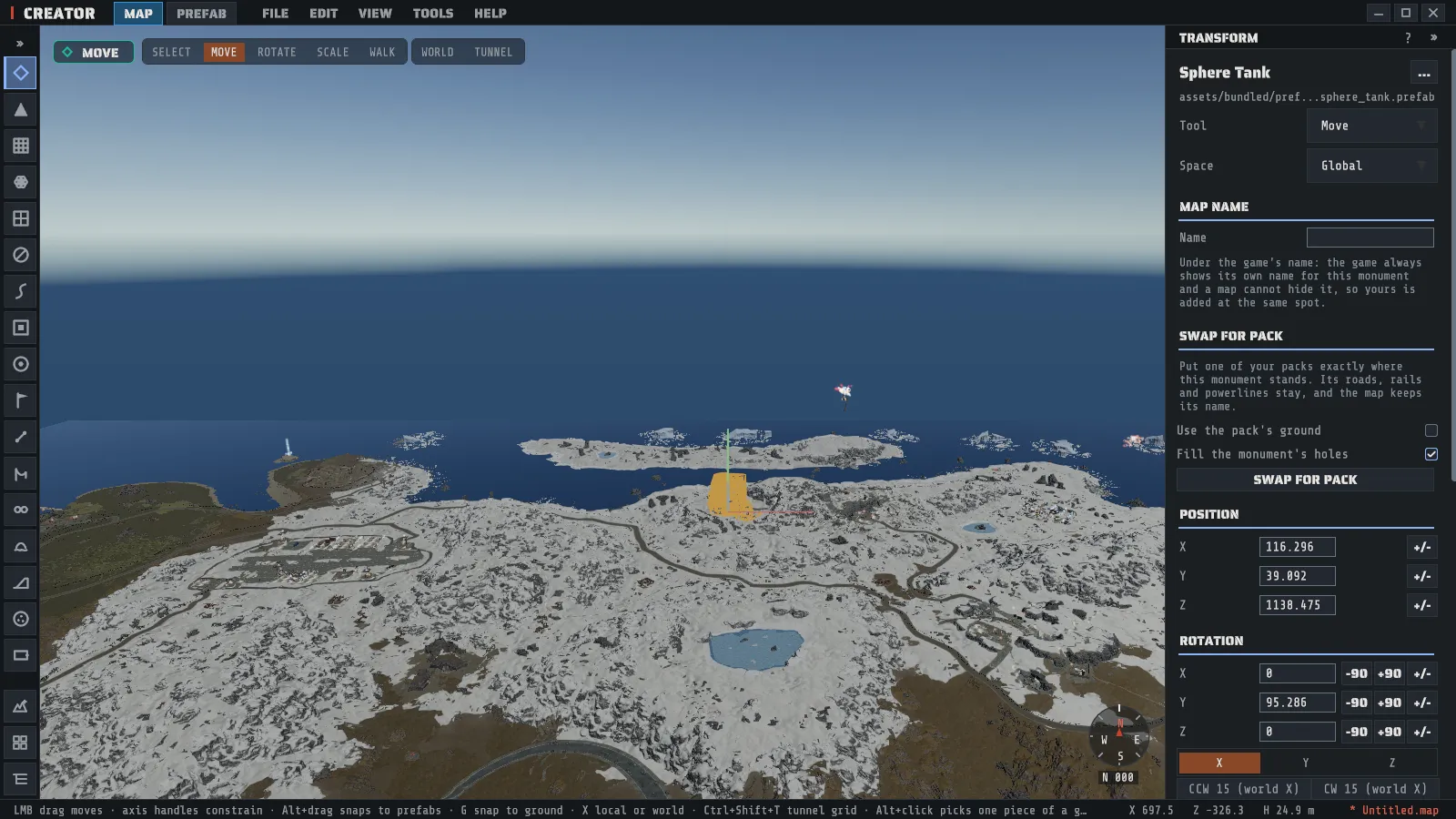
-
Raise a hill. Press
Cfor Sculpt and drag on open terrain.[and]change the brush size,,and.change its strength, andMcycles the brush mode. PressEscmid-stroke to cancel it: the terrain goes back and no undo step is recorded.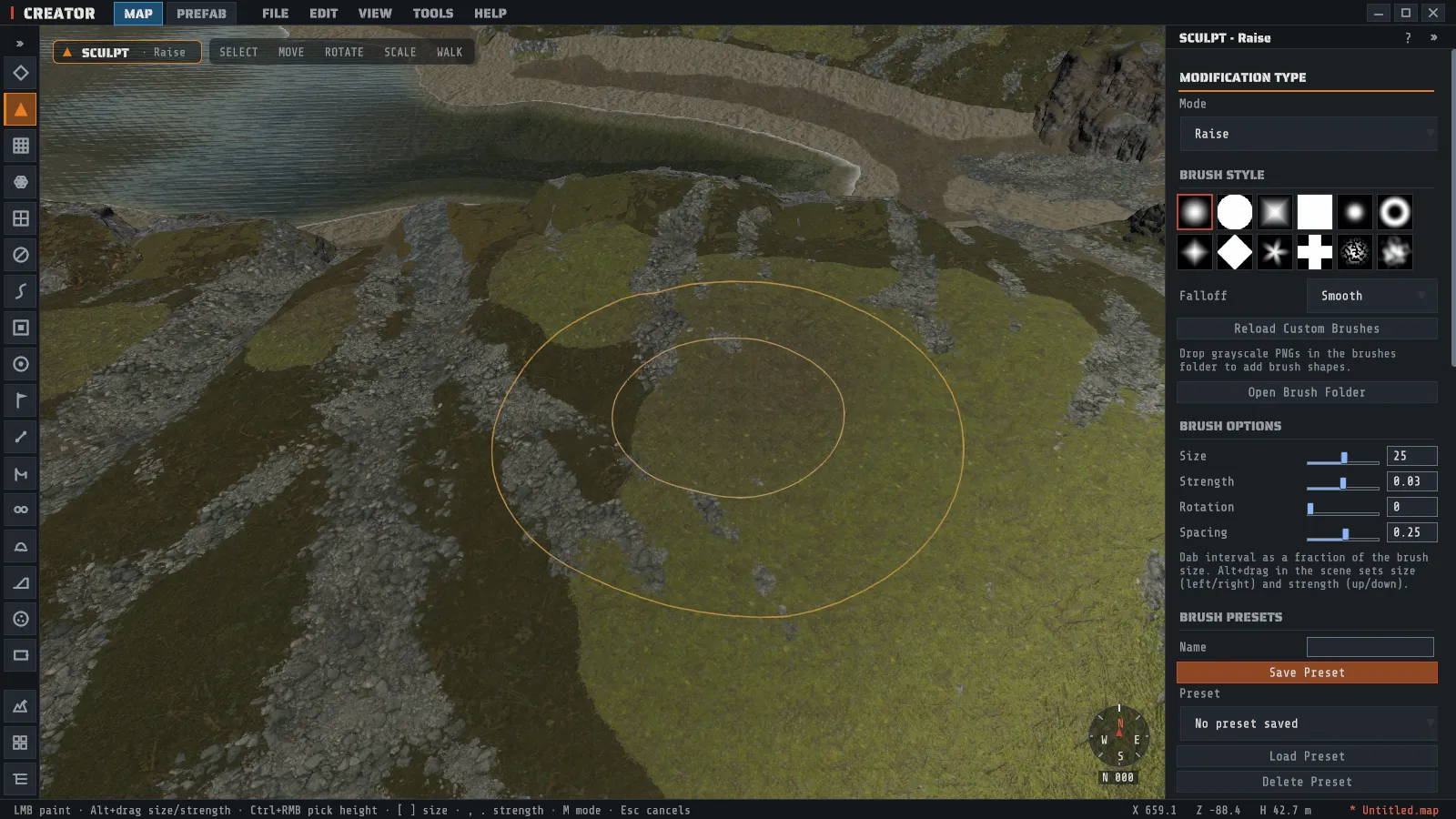
-
Paint the ground. Press
Yfor splat painting and pick a channel with the number keys. Painting shows up immediately, and so does undoing it. -
Undo all of it.
Ctrl+Z. One thing you did is one step, whole-map operations included.Ctrl+Yredoes. -
Save it.
Ctrl+S, or FILE > Save Map. The unsaved dot in the status bar clears.
Saving, and the thing to know about autosave
Section titled “Saving, and the thing to know about autosave”FILE > Save Map writes the .map. The status bar carries an unsaved-changes dot until you do.
The first Ctrl+S writes <name>.saved.map beside the map you opened. From then on that file is
your map: it is first in RECENT MAPS, the status bar names it, and later saves update it. The map
you opened is never overwritten by a plain save. FILE > Save Map As picks another name or folder.
A map you generated or created blank has no file yet, so its first Ctrl+S asks where to save it,
starting in Documents\Creator\Maps with a name that says its size (and its seed, for a generated map).
A save is refused, with a message saying why, while a map is still loading, placing its prefabs or generating, or while a whole-map operation is running. Save again once it finishes.
Going back to the saved map
Section titled “Going back to the saved map”FILE > Reload Map from Disk opens the map’s own file again: the file your last save wrote, or the file you opened if you have not saved since. Use it to drop everything you did since that save in one step, or to pick up a file another program has rewritten. If anything is unsaved it asks first, with the same three answers as opening another map: SAVE, DON’T SAVE (which is the one that drops your changes), or go back.
The camera stays where it was, and so does the file your next Ctrl+S writes. The undo history starts
again, as it does whenever a map is opened.
The entry is greyed out, with the reason beside it, when there is nothing to reload: a map you generated or created blank has no file until you save it, and a file that has been moved or deleted cannot be read again. FILE > Save Map As gives the map a file in both cases.
If Creator hits an unexpected error with unsaved work open, it tries to save that work on the way down, and tells you what it found the next time you start. That, and everything else about recovery, is on Troubleshooting. Where each of these files lands is Where your files live.