
Preferences
Open Preferences with EDIT > Preferences… in the editor, or with the PREFERENCES button beside
HELP at the bottom of the start screen, so you can set the UI size, connect your AI client or update
game content before you open a map. It has five tabs, and every change applies immediately: there is
no OK button and nothing to confirm. The one exception is Scale UI, which applies when you let go of
the slider. CLOSE, the X, Esc or a click on the backdrop all close it. The window keeps one size
whichever tab you pick, so the tabs stay where you clicked them, and a tab longer than the window scrolls
inside it. The title, the tabs and CLOSE stay on screen at any window size.
Every tab works with no map open. The one row that needs a map is Light multiplier on GENERAL (the camera light belongs to the editor view), which the start screen shows greyed out with that reason.
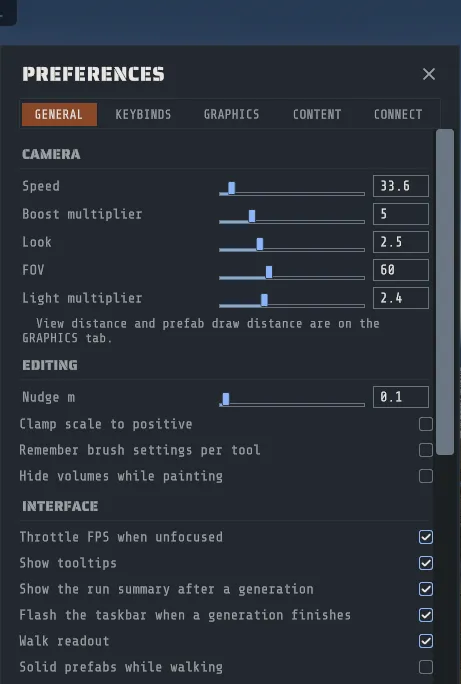
GENERAL
Section titled “GENERAL”| Section | Rows |
|---|---|
| Camera | Speed (how fast the fly camera moves, 10 to 400 meters per second here; the mouse wheel over the map changes it too, up to 2000, and this row follows it), Boost multiplier (the multiplier while you hold shift), Look (mouse sensitivity), FOV, Light multiplier (how bright the camera headlamp is) |
| Editing | Nudge m (the step the nudge shortcut moves a selection), Clamp scale to positive, Remember brush settings per tool, Hide volumes while painting |
| Interface | Throttle FPS when unfocused (caps the frame rate while Creator is in the background, except while a map is loading or generating), Show tooltips, Show the run summary after a generation, Flash the taskbar when a generation finishes, Walk readout, Solid prefabs while walking |
| Autosave | Autosave, Interval min, Keep files, and the folder it writes to |
| Screenshots | Folder, with BROWSE, and a reminder of the key that captures the viewport |
| Display | Follow Windows display scaling, Scale UI with the size it applies, Mode (Fullscreen, Borderless or Windowed) and, in Windowed only, Resolution |
Six of those are worth a sentence each:
- Clamp scale to positive exists because negative scale renders correctly in Creator and breaks colliders in the actual game. On, a negative scale typed into the transform panel is flipped positive.
- Remember brush settings per tool gives Sculpt and Paint their own brush size, shape, opacity and gates. Off, they share one brush.
- Hide volumes while painting takes every volume outline (volumes, no-build zones and the volumes inside monuments) out of the view while you are holding a Sculpt or Paint stroke, and puts them back the moment you let go, so they never hide the ground you are working on. It starts off.
- Show the run summary after a generation opens the RUN SUMMARY window when a generation you started finishes. It starts on. Off, LAST RUN SUMMARY still shows it.
- Flash the taskbar when a generation finishes flashes Creator’s taskbar button, and leaves a notice in the app, when a generation of a minute or more, or a queue, ends while you are in another window. It starts on. The notice stays on this PC: Creator sends nothing anywhere for it.
- Show tooltips turns the hover tips on and off. It starts on. Off, the one tip that still shows is a grayed-out control’s reason, because that is the only way to learn why it will not run.
- Walk readout shows the line of numbers under the tool pill while you walk the map: speed, slope, height, water depth, distance and time. It starts on.
- Solid prefabs while walking makes rocks, monuments and buildings solid in walk mode by keeping Rust’s collision shapes when the game’s content loads. It starts off, it costs some load time and memory on every map, and it takes effect the next time Creator starts.
- Scale UI scales the whole interface, menu bar, panels, the floating tool windows and text
together. With Follow Windows display scaling on (the default), Creator starts at the size
Windows uses for other apps on that monitor, and Scale UI adjusts it from there: on a 4K monitor at
150 % scaling, Scale UI at 100 % gives 150 %. The line under the slider says what is applied, for
example
Applied 150% = Windows 150% x 100%. The UI never grows so large that the window has less than 1280 by 720 of room, even if you ask for more; the line then sayslimited by window size. The tick on the track is 100 %, dragging catches it as you pass, and the new size applies when you let go. Creator follows the window to another monitor and rescales if its Windows scaling differs. - Mode decides how the window sits on the monitor. Fullscreen and Borderless always use the monitor’s own resolution, so the picture stays sharp. In Windowed you can drag the window’s edges to any size; Creator remembers the size you leave it at, shows it under Resolution, and returns to it the next time you switch back to Windowed. The maximize button in the top-right corner switches between Windowed and full screen the same way.
The camera’s View distance and the prefab draw distance used to be on this tab and are now on the GRAPHICS tab with the other distances, which is where a dim line under Camera points you.
KEYBINDS
Section titled “KEYBINDS”Every shortcut Creator registers, grouped, with its current binding. Click a row’s binding to rebind
it: Creator captures the next key you press, and Esc cancels the capture without changing anything.
RESET ALL puts every binding back to its default, after asking, because it cannot be undone.
Two actions on one key are allowed and reported rather than refused. The tab says
Two actions share a binding; clashes highlighted below. and outlines both rows, so you can see the
clash and decide which one to move.
Below the rebindable rows are three sections of fixed grammar that no panel can change, listed there precisely because people go looking for them: the fly camera’s look, boost and speed; select, marquee, the group selectors and the paint channel digits; and the diagnostic keys. Keyboard shortcuts is the same information as a page you can read without opening the app.
GRAPHICS
Section titled “GRAPHICS”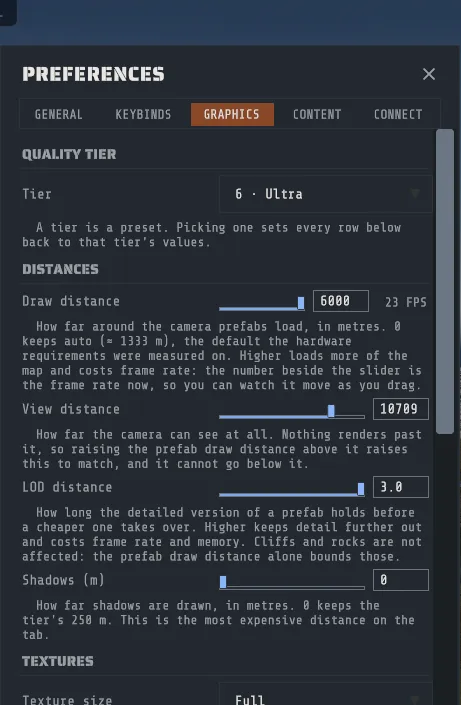
Tier runs from 0 · Potato to 6 · Ultra and defaults to 4 · High. It is a preset, not
just a knob: it sets shadow quality, distance and cascades, level of detail bias, texture resolution
and streaming budget, anisotropic filtering and how many lights can affect one object together, and
picking one puts every row below it back to that tier’s own values. Drop it if the viewport is slow,
raise it when you are judging how the map looks, then adjust the individual rows from there.
Distances
Section titled “Distances”| Row | Range | What it does |
|---|---|---|
| Draw distance | 0 to 6000 m, or the map’s size if that is larger | How far around the camera prefabs load. 0 keeps the automatic radius, which is the map size divided by three, so 1333 m on a 4000 m map. |
| View distance | 1000 to 12000 m | The camera’s far clip. Nothing at all renders past it. |
| LOD distance | 0.5 to 3.0, tier default | How long the detailed version of a prefab holds before a cheaper one takes over. |
| Shadows (m) | 0 to 500 m | How far shadows are drawn. 0 keeps the tier’s distance. |
Draw distance is the one to raise if props, rocks and monuments stop nearer than you want,
and it is live: drag it and the world fills in without a reload. It costs frame rate and memory in
proportion. See the
system requirements. The number beside the
slider, for example 42 FPS, is the frame rate the editor is drawing at now, so you can watch what a
larger distance costs while you drag. It is blank on the start screen, where no map is being drawn.
Creator also tells you once when the setting is costing you. On a map with more than 20,000 prefabs, with
Draw distance more than twice the automatic distance and the view drawing under 20 frames per second,
a card titled Draw distance is slowing this map names your distance, the automatic one and the frame
rate. Dismiss it and it does not come back for that map. The setting stays yours: Creator never lowers it.
What a long draw distance costs, measured
Section titled “What a long draw distance costs, measured”One PC (Intel i7-12700KF, 128 GB of RAM, Radeon RX 6750 XT), tier 6 · Ultra, a 4250 m map with
30,486 prefabs, and Draw distance at 6000 m. The automatic distance on that map is 1,417 m. The
frame rate at each of the diagnostic report’s viewpoints:
| What the camera looks at | Frames per second at 6000 m |
|---|---|
| A cliff, close up | 11 |
| A monument, close up | 14 |
| The whole map from above | 15 |
| A monument | 18 |
| A river, from low down | 21 |
| A powerline | 27 |
| The map from mid height | 28 |
| The ground at mid distance | 33 |
| A railway | 35 |
| Along a road or a river | 70 to 73 |
The frame rate follows how many objects are in view: the cliff view had about 100,000 objects in it and
the road views about 6,000. Two builds of Creator measured within a few frames of each other at every
viewpoint, so the cost is the drawing, and the draw distance is the setting that moves it. For
comparison, on the same PC with an older build, a smaller map (21,525 prefabs, 4000 m) at its automatic
distance of 1,333 m measured 66 to 127 frames per second at the same viewpoints. If a big map is slow, set Draw distance to 0 first.
A prefab cannot be drawn past the far clip, so the two distances are kept coherent for you: raising the prefab draw distance above the view distance raises the view distance to match, and the view distance cannot be dragged below the prefab draw distance. LOD distance is the level of detail bias, and it is the third reason distant things can look wrong rather than absent: the mesh is drawn, but it is the cheap one. Raising it holds the detailed meshes further out. Cliffs and rocks do not respond to it, because they are drawn as a single mesh bounded by the prefab draw distance alone.
Textures
Section titled “Textures”| Row | Options | What it does |
|---|---|---|
| Texture size | Full, Half, Quarter | Half and Quarter drop the largest mip level, which saves video memory and softens every surface. |
| Filtering | Off, On, Force | Anisotropic filtering, which keeps ground and road textures sharp at a glancing angle. Force applies it to every texture. |
| Streaming MB | 256 to 8192 MB, tier default | The video memory the streamed textures may use. A budget above the card’s free memory makes things worse, not better. |
Frame pacing
Section titled “Frame pacing”VSync matches the monitor and Frame cap limits the frame rate to Off, 30, 60, 120, 144 or
240. It is 60 until you change it, and Off runs uncapped. Opening a map, generating and the F9
diagnostics run are never capped. VSync wins when it is on, so the cap does nothing then, and the cap
you pick here is what the GENERAL tab’s Throttle FPS when unfocused returns to when the window gets
focus back.
Terrain
Section titled “Terrain”Terrain error is how many pixels of terrain shape error Unity may allow before it draws more
triangles, 1 to 20 with 5 the default. Lower is a sharper skyline and costs frame rate.
Every row is saved between sessions.
CONTENT
Section titled “CONTENT”Where Creator reads Rust’s files from. Game content says what this session is using: by default Using your Rust install, with the Rust build and the path. Creator needs no copy.
Private copy (optional) keeps Creator on one Rust build while Rust updates. It needs about 50 GB of disk.
- The copy in use, if any, is shown by its Rust build, its size and the day it was made.
- Make a Private Copy copies Rust’s files from your Rust install, behind a confirm. Once a copy
exists the button reads Update the Private Copy. It only works with no map open: while a map is
open the button is greyed out and says
Close the map first (FILE, Unload Map), then update game content.Opened from the start screen, it is live. It is also unavailable while Steam is updating the Rust files Creator has open, and says to close Creator and start it again to make the copy. - Use the private copy, below the button, switches between the copy and your Rust install. It is switched on for you when a copy finishes. A change takes effect the next time Creator starts, and the tab says so.
- While a copy runs, its progress line shows here with a Cancel Sync button that stops it and leaves everything else unchanged. While it waits for Steam to finish updating Rust, a Check Again button beside it looks at the install straight away (When Steam is updating Rust).
- Private copies on disk lists every private copy by its Rust build and size, marks the one in use, and has a Delete on each of the others, behind a confirm, plus the total on disk. Delete the newest and Creator uses the newest one left.
CONNECT
Section titled “CONNECT”Creator can run a small server on this PC that lets your own AI client drive the editor. It is off until you turn it on, or until you start Creator from the Crucible Launcher with its Local Agent installed, which turns it on for the Local Agent (The Crucible Launcher’s Local Agent).
| Control | What it does |
|---|---|
| Port | The port to listen on. |
| START | Starts the server and shows a token. |
| STOP (KILL SWITCH) | Stops it; clients are disconnected. |
| Token | The token to paste into your client. It changes each time you start. |
| Claude Code / Claude Desktop | The exact line to add Creator to that client, with a COPY button. |
| Connected client | Which client has connected. |
| Tool calls | Every call your client has made, with CLEAR LOG. |
Follow Connect Claude Desktop or Connect Claude Code rather than working from the fields: those pages are checked against the recipes this tab copies.
The Relay block below is for web clients, which can only reach a public address. PAIR links it, Endpoint is the address you add in the client, Pairing code is what you type on the relay’s consent page, and UNPAIR (KILL SWITCH) unpairs and stops access.
Your license
Section titled “Your license”Your Creator license lives in the Crucible launcher, not in Preferences, so there is no license tab. You buy it in the launcher’s Shop tab and activate it in its Account panel, Creator needs an active license: Install Creator says what the license window shows when that check fails. How many PCs a license covers, renewals, and freeing a PC with Deactivate are in Licenses and account.