
Map tools
Five operations that rewrite the entire map at once: turn it, rescale it, change how detailed its
terrain is, grow or shrink its border, and paste another .map into it. Open them with
TOOLS > Map Tools: Rotate, Resize, Merge….
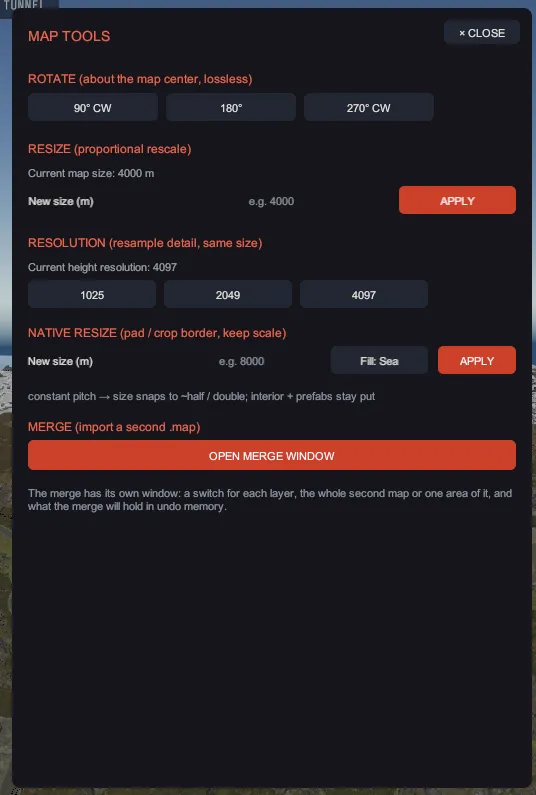
Each operation applies to the terrain, the prefabs and the paths together, and each one is a single undo step, however much it changed. Nothing is written to disk until you save.
If the map has live paths or ramps, each of these operations bakes them first: their ground stays exactly as it is and stops following them. The bake is part of the operation’s own undo step, so undoing the operation brings them back. Resample and the pad or crop say how many in their confirm; rotate and resize say it in their result line. A merge bakes only the ones whose ground its paste lands on, on a layer it brings (height, water, ground textures or topology), and the merge window says which above MERGE, before it runs. A merge of prefabs, paths or server data alone bakes nothing.
“Resize” and “Native resize” are different operations and are not interchangeable. Resize rescales the whole world, so features keep their relative positions and get bigger or smaller. Native resize keeps the scale exactly and adds or removes border, so features keep their real size and their world position. Picking the wrong one is the mistake this panel invites.
The five operations
Section titled “The five operations”| Section | What it does to the map |
|---|---|
ROTATE (about the map center, lossless) | Turns everything a quarter, half or three quarter turn about the center. No terrain detail is lost, and prefabs and path nodes turn with the ground. |
RESIZE (proportional rescale) | Stretches or shrinks the whole map to a new size in meters, about the center. Terrain resolution is unchanged, the coastline shape is preserved, and prefab and node positions scale with it. Prefab heights and prefab scales do not change, so monuments stay real size and nothing leaves the map. |
RESOLUTION (resample detail, same size) | Keeps the world size and changes how many terrain points describe it, resampling every layer so they stay registered. Prefabs and paths do not move. |
NATIVE RESIZE (pad / crop border, keep scale) | Holds meters-per-terrain-point constant and adds or removes border cells. The interior keeps its size and its world position, so prefabs never move. |
MERGE (import a second .map) | Opens the merge window, which pastes another map, or one area of it, into this one at an offset. |
Rotate, resize, resample
Section titled “Rotate, resize, resample”- Click 90° CW, 180° or 270° CW to turn the map.
- For a rescale, type meters into New size (m) under
RESIZE (proportional rescale)and click APPLY. - For detail, click 1025, 2049 or 4097 under
RESOLUTION (resample detail, same size). The panel shows the current resolution above the buttons and asks you to confirm, because it rebuilds every terrain layer. - For border, type meters into New size (m) under
NATIVE RESIZE (pad / crop border, keep scale), pick Fill: Sea or Fill: Edge for how a grown border is filled, and click APPLY.
Native resize cannot land on any number you like. Terrain resolutions are fixed steps, so holding the scale constant limits the sizes it can reach, which works out to roughly half and double. The panel snaps your number to the nearest reachable size and shows you that size before you confirm, so read the confirm text rather than assuming you got the number you typed. A crop also removes prefabs that fall outside the new bounds, and the confirm text says so.
The merge has its own window. Under MERGE (import a second .map), click OPEN MERGE WINDOW: MAP TOOLS
closes and the MERGE A MAP window opens over the map, where it stays open while you fly around and look.
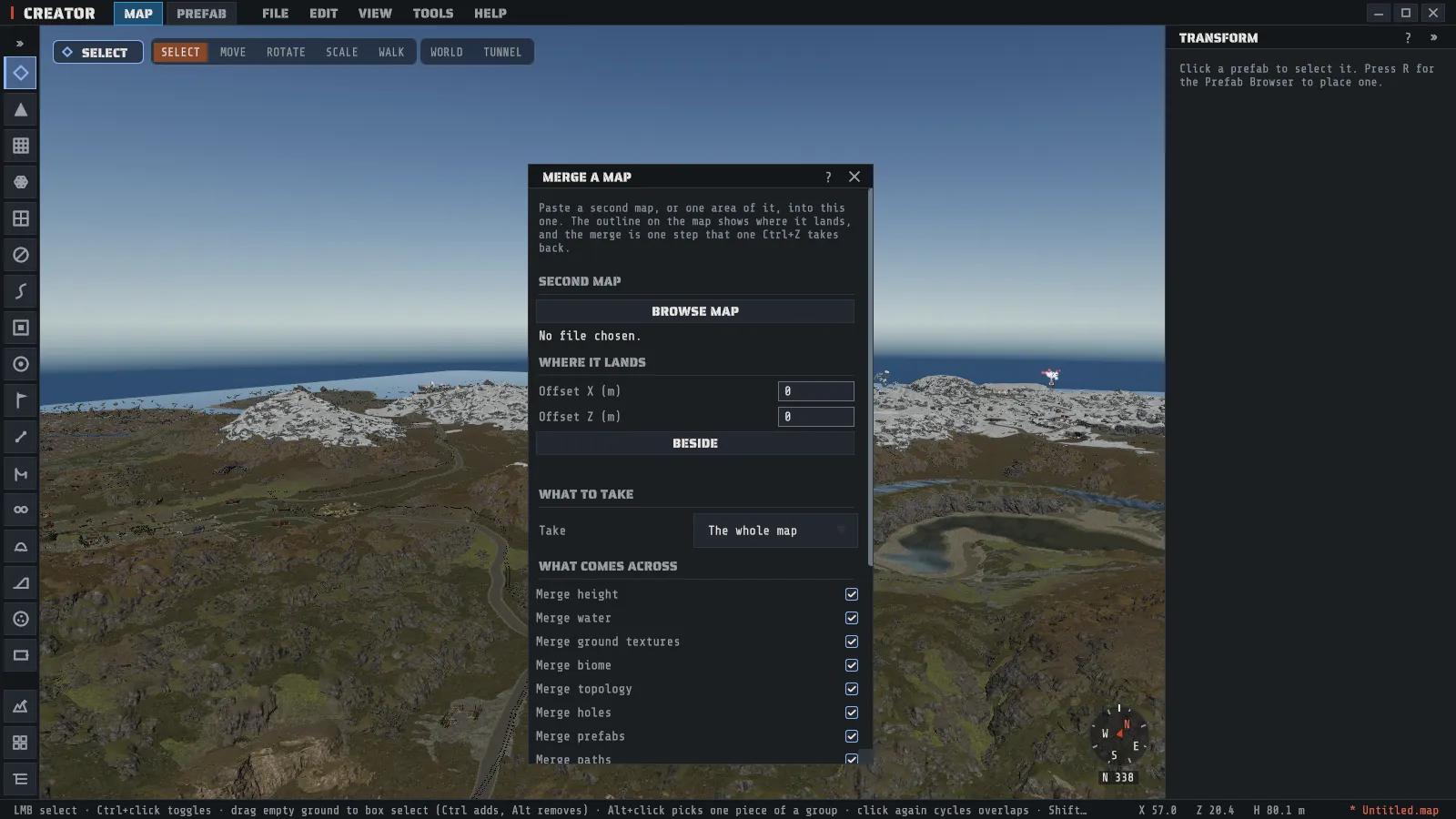
- Click BROWSE MAP and pick the second map. The line under the button says how big it is and how many prefabs and paths it holds.
- Type Offset X (m) and Offset Z (m): where the second map’s center lands, measured from the center of yours. BESIDE sets an offset that lands the paste a quarter of your map east of its center, clear of the middle.
- Leave Take on
The whole map, or chooseAn areaand type Area center X (m), Area center Z (m), Area width (m) and Area length (m). The area is measured in the second map’s own meters from its center, because that map is not on screen. The window keeps the numbers inside the second map. - Under
What comes across, switch off anything you do not want to bring. - Click MERGE.
An outline on the ground shows the rectangle the paste will land on, and the line under BESIDE gives the same rectangle in meters. Change a number and both follow. A paste that would land wholly off your map is refused, with the reason in place of that line.
What comes across
Section titled “What comes across”Each switch brings one thing, and only inside the paste. Outside it, nothing of yours changes.
| Switch | What it brings |
|---|---|
Merge height | The second map’s ground height. Height rule picks Replace (its height takes over) or Higher of the two (each point keeps whichever is higher, so the merge only ever raises ground). |
Merge water | The second map’s water layer. Each point keeps the higher of the two. |
Merge ground textures | The second map’s ground textures, which replace yours. |
Merge biome | The second map’s biomes, which replace yours. A Tropical layer of yours is cleared under the paste, because the second map brings none. |
Merge topology | The second map’s topology. Topology rule picks Combine (its bits are added to yours) or Replace (its bits take over). |
Merge holes | The second map’s terrain holes. A hole in either map stays a hole. |
Merge prefabs | The prefabs whose pivot is inside the area. Those that would land past your map’s edge are left out, with a count. |
Merge paths | The roads, rivers and other paths that lie wholly inside the area. One that crosses the area’s edge is left out whole, with a count, because half a road is not something a merge should invent. Names are made unique so its River 1 does not collide with yours. |
Merge server data | Off unless you switch it on. The second map’s IO wiring, map markers, NPC spawn points with their groups, trigger volumes of the fixed kinds, placed vehicles and Bradley patrol paths, each kept only where it lies inside the area. IO wiring describes placed prefabs, so it comes only with Merge prefabs on, and a wire the area’s edge cuts is left out, with a count. A spawn group or a Bradley path whose name your map already uses is renamed. A Bradley path comes whole or not at all, and the path for the launch site’s own Bradley stays behind when your map already has one. Loot, vending and NPC profiles, ziplines, map names and the cargo ship’s ocean ring are not brought. |
The window opens with the first eight switches on, Merge server data off, The whole map, Replace and
Combine, which is the merge as it has always been.
A custom prefab on the second map that comes across whole is still one custom prefab on yours: its record comes with its pieces, moved to where they land, so one click still selects all of it. If your map already holds a custom prefab with the same name and number, the incoming one takes a new number. One that the area’s edge, or your map’s edge, cuts through comes across as loose prefabs, and the result line says how many, because half a custom prefab is not one.
The two maps do not have to be the same size or the same resolution. The merged map lands at the right scale either way.
Undo memory
Section titled “Undo memory”Above MERGE the window says how much undo memory the merge will hold and how much the undo history may hold on this PC. A merge keeps only the part of your map it pasted onto, so a small area costs little: a 1,000 m square pasted into a 4,000 m map is about 44 MiB with every switch on, and about 8 MiB for height alone. A whole 4,000 m map pasted over another is about 700 MiB.
If the merge is larger than the history may hold, MERGE asks first. The merge itself can still be undone, but your older undo steps are dropped to make room. Taking a smaller area, or switching layers off, keeps them.
While it runs
Section titled “While it runs”Large maps show a progress dialog; CANCEL (Esc) stops it. A merge shows its progress in its own
window, and CANCEL MERGE or Esc stops it.
Canceling leaves the map unchanged.
One edge, on rotate only: if ground textures do not match the terrain resolution, rotate skips them and
the status line says so: ⚠ splat skipped (resolution mismatch). The terrain is turned and the
ground textures are not, so repaint them or undo, rather than saving over your map.