Your Rust content
Creator renders your map with Rust’s own models, textures, shaders and monuments. It reads them straight out of your Steam copy of the game, so there is nothing to copy and nothing to wait for: install Rust, start Creator, and LOAD MAP, GENERATE WORLD and PREFAB WORKSPACE work. A private copy of those files is an option you can turn on, and most people never need it.
Point Creator at your Rust install
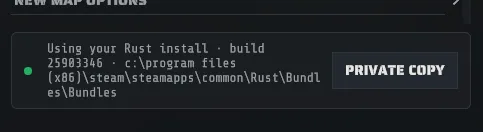
Section titled “Point Creator at your Rust install”Creator finds a Steam install of Rust by itself. The start screen’s footer then reads Your Rust install, build and the Rust build it is reading. Hold the pointer over that line to see the folder.
If it says Creator could not find your Rust install:
- On the start screen, set RUST INSTALL to your Rust install. DETECT finds it for you.
- Check the path ends at the client bundles. It looks like
C:\Program Files (x86)\Steam\steamapps\common\Rust\Bundles\Bundles.
Creator opens the files as soon as the path is right. CREATE BLANK works before that, with plain terrain colors and no Rust art.
A folder of Rust’s staging branch (Rust - Staging Branch in Steam, installed in
steamapps\common\RustStaging) is read as its own build: the footer names the staging build, never the live
build installed beside it.
Creator only reads your Rust install. It never changes it, and it copies nothing unless you ask.
When Steam is updating Rust
Section titled “When Steam is updating Rust”Creator only reads a Rust install that Steam is not changing. While Steam is downloading or applying a Rust update, including a patch-day hotfix, the start screen says Rust is updating in Steam; Creator will continue when it finishes.
- Nothing fails. Creator opens your Rust files by itself the moment Steam is done. CREATE BLANK works meanwhile.
- CHECK AGAIN looks at Steam straight away instead of at Creator’s next look.
- USE RUST AS IT IS opens your Rust files now, without waiting. It asks first: a file Steam has not finished may still be the old build, and a map built from it can look wrong. Close and reopen Creator once Steam is done to read the whole update.
- If you have a private copy, Creator uses it for that session instead of waiting, and says so.
- A private copy is never mixed. If Rust changes while Creator is copying, Creator starts the copy again once Steam has finished.
An update that is waiting
Section titled “An update that is waiting”Steam can know about a Rust update without starting it, for example when Rust is set to update only when you launch it, or outside Steam’s update hours. Your Rust files are unchanged until Steam applies the update, so Creator reads them as they are and the start screen says A Rust update is waiting in Steam. Creator reads your Rust files as they are until Steam applies it.
When Rust updates while Creator is open
Section titled “When Rust updates while Creator is open”Creator keeps your Rust files open for as long as it runs, so Steam cannot finish updating Rust until you close Creator. When Steam starts updating, Creator tells you once:
Steam is trying to update Rust. Close Creator so the update can finish.
Save your map, close Creator, let Steam finish, and start Creator again. Until you do, the map you have open keeps working. If Rust did move to a newer build while Creator was open, Creator will not generate a new map in that session: it says Rust was updated while Creator was open and asks you to close and reopen it. If Steam starts updating while Creator is still opening your Rust files, Creator says Rust changed in Steam while Creator was opening it and will not generate a new map until you close and reopen it.
A private copy cannot be made while Steam is updating the Rust files Creator has open: the copy would wait for Steam, and Steam waits for Creator. Creator says so; close Creator, start it again, and make the copy then. Creator waits for Steam and copies Rust once it has finished.
When Rust is newer than this version of Creator
Section titled “When Rust is newer than this version of Creator”Each Creator release is tested against one Rust build. When the Rust you have installed is newer than that, Creator tells you once for that Rust build:
Rust has updated since this version of Creator was tested (tested on 25184202, installed 25567513). Most things work; report anything odd.
The numbers are Steam build ids and yours will differ. You can keep working. If something looks wrong on the newer build, such as a new monument that is missing or one that sits oddly, report it: that is exactly what the message is asking for. You are told again only when Rust updates again.
A seed follows your Rust build
Section titled “A seed follows your Rust build”New Rust content moves monuments and adds props, so the same size and the same seed can produce a different world after Rust updates. A map you have saved does not change: it is a file, and it opens the same on any build.
If you need a seed to keep producing the same world while Rust updates, that is what the private copy is for.
The private copy (optional)
Section titled “The private copy (optional)”A private copy keeps Creator on one Rust build while Rust updates. It is a copy of Rust’s files inside Creator’s own folder, about 50 GB, and Creator reads it instead of your Rust install. Reasons to want one:
- You are part way through a project and want a seed to keep generating the same world.
- You want Steam free to update Rust while Creator is open.
Make the copy before Rust updates: a copy holds the build that was installed when you made it.
Make one
Section titled “Make one”- Open Preferences > CONTENT. From the start screen, PRIVATE COPY takes you there.
- Press Make a Private Copy and confirm SYNC. Creator copies what it needs into
%LOCALAPPDATA%\Rook\Creator\content\<buildid>\. - Wait for it to finish. The progress line says what it is doing and how much is left, in gigabytes and in files.
When the copy is finished, Use the private copy (just below the button) is switched on, and Creator reads the copy from the next time it starts. Switch it off in the same place to go back to reading your Rust install; that also takes effect at the next start.
You can keep using the PC while it runs. The progress line keeps moving, so you can tell slow from stuck.
Stopping a copy
Section titled “Stopping a copy”Press Cancel Sync beside the progress line (on the start screen it is CANCEL) and confirm STOP SYNC; GO BACK keeps it copying.
Stopping is safe at any time, and leaves everything else exactly as it was. In the last moment of a copy the button greys out. If Creator is closed, crashes or loses power in the middle of a copy, nothing is lost either; start the copy again.
Re-syncing, and what it changes
Section titled “Re-syncing, and what it changes”Update the Private Copy copies your Rust install again, at the build installed now. Creator writes the new copy alongside the old one and does not delete anything.
If Creator says to update a copy, do so when convenient.
Reclaiming disk space
Section titled “Reclaiming disk space”A private copy is roughly 50 GB, and Creator keeps one per Rust build you have copied, so several of them add up fast. They are at:
%LOCALAPPDATA%\Rook\Creator\content\<buildid>\Preferences > CONTENT lists every copy under Private copies on disk, with its Rust build and its size, marks the one in use, and has a Delete button on each of the others. A copy you are not using can always be deleted. Delete the newest one and Creator uses the newest copy that is left; delete the only one and Creator goes back to reading your Rust install. Deleting by hand is safe too. Nothing in a copy is unique, and making it again rebuilds it from Steam.
Use the client files, never a dedicated server’s
Section titled “Use the client files, never a dedicated server’s”If Creator will not open your Rust files
Section titled “If Creator will not open your Rust files”- It says Rust is updating in Steam. It is waiting, not failing; see
When Steam is updating Rust. CHECK AGAIN looks now, and
USE RUST AS IT IS opens the files without waiting. If it says Rust’s game files are
incomplete and Steam is not updating anything, verify the game files (Steam’s Verify integrity of
game files, or
steam://validate/252490in your browser); Creator carries on once they are back. - It says it could not find your Rust install. Set RUST INSTALL yourself; see Point Creator at your Rust install.
- Creator refuses the loaded bundles. See the Caution above, and Troubleshooting.