
Painting
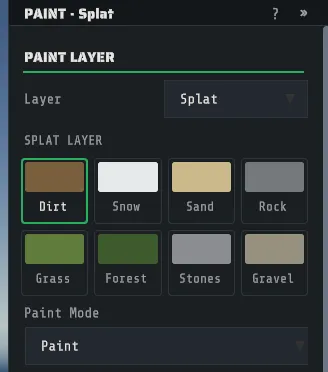
A Rust map carries four painted layers besides its height, and Creator paints all four with the same brush: the ground textures, the biome, the topology bits and the alpha holes. The rail gives each layer its own button and its own color, and the inspector header says which one you are in, for example PAINT · Splat.
The four layers
Section titled “The four layers”| Layer | Key | What it is | What it changes in game |
|---|---|---|---|
| Splat | Y | The ground textures, eight of them, blended | What the ground looks like and sounds like underfoot |
| Biome | B | Which of five biomes a place belongs to | Vegetation, ambience, and the biome-gated spawns |
| Topology | T | A bitmask, one bit per named kind of ground | What the game and generators treat that ground as: beach, forest, road, monument, cliff and the rest |
| Alpha | A | Whether the terrain surface is drawn at all | Holes: caves, tunnel mouths, anything you can see through the ground into |
Every layer uses the brush you set up on Sculpting, including the shape, the falloff, the rotation, the spacing and the gates. Two differences: paint has an Opacity as well as a Strength, and the two binary layers (Topology and Alpha) have nothing to blend, so they take the brush’s footprint but not its softness.
The digits 0 to 7 pick the channel while a paint tool is active, and Esc cancels a stroke in
flight without recording anything.
Splat, the eight ground textures
Section titled “Splat, the eight ground textures”The eight channels are, in order: Dirt, Snow, Sand, Rock, Grass, Forest, Stones and Gravel. The inspector shows them as a color swatch grid rather than a numbered slider, so you pick the ground you want by eye, and the pill in the view names your choice as you work.
Paint Mode is the other half of the splat tool.
| Mode | What a drag does |
|---|---|
| Paint | Adds the chosen channel where you drag |
| Erase | Takes the chosen channel out, giving the ground back to whatever else is there |
| Smudge (smear existing) | Smears the textures already on the ground in the direction of your drag. It shows up near a color boundary, not on uniform ground |
The eight channels always add up to one at every point, so painting one channel in always takes the others out proportionally. That is the format’s own rule, not a choice Creator makes.
Five biomes: Arid, Temperate, Tundra, Arctic and Jungle. Pick one from the Biome dropdown and paint. A biome is one value per place rather than a blend, so painting Arctic over Temperate replaces it.
Biome does a lot of quiet work in Rust: it decides which trees and plants belong, and the game uses it for ambience and for some spawns. Paint it to match the ground you have sculpted, or a snowfield keeps growing palm trees.
The sixth biome, Tropical, paints the Deep Sea’s tropical ground where you put it. Picking it turns the map’s Semi-Tropical mode on (one undo step; the TROPICAL BIOME section under the list shows the two mode checkboxes), because Tropical ground only applies while that mode is on. See Tropical biome for what it does and what each server shows.
Topology
Section titled “Topology”Topology is the map’s own description of its ground, as a bitmask: a place can be Beach and Oceanside and Mainland at once. The Topology dropdown names the first eight bits, which are the ones the digit keys reach:
Field, Cliff, Summit, Beachside, Beach, Forest, Forestside, Ocean.
There are thirty-one named bits in total, and the rest (Decor, Monument, Road, Roadside, Swamp, River, Riverside, Lake, Lakeside, Offshore, Rail, Railside, Building, Cliffside, Mountain, Clutter, Alt, Tier0, Tier1, Tier2, Mainland, Hilltop) are reachable through Multilayer topology under Advanced Paint: open that section, turn on Enable multilayer mask, open Topology bits (mask) and tick the bits you want, and one stroke writes all of them.
A set of layers you paint together can be kept by name. With the multilayer mask on and its layers ticked, type a name under Brush Presets and press Save Preset: the preset keeps the set, along with Set bit (off = clear) and Clear underlying. Under Multilayer topology, Topology set then lists every preset that carries a set, and Load Topology Set loads only those layers into the mask. The brush’s size, shape, strength and filters stay as they are, so you can go from a “road” set to a “riverbank” set without re-dialing the brush. Load Preset still loads the whole brush.
Set bit (off = clear) is the toggle that decides whether your stroke sets the bit or clears it, and
the tool pill says which: Topology: Road or Topology: Road (clear).
Clear underlying makes a set stroke replace instead of add. With it off, painting Road over ground that is Field and Forest leaves all three bits there. With it on, the stroke takes the other topology off the ground it touches and leaves what it paints: the one bit, or the whole set when the multilayer mask is on. Seven bits always stay, because the game lays them across the whole map and a server reads them: Tier0, Tier1, Tier2, Mainland, Ocean, Oceanside and Offshore. A stroke that paints one of them still sets it, and a clear stroke can still take one off. Clear underlying does nothing to a clear stroke or a blur stroke, the gates still decide which ground the stroke may touch, and it is part of the same undo step as the stroke.
Topology is what makes a hand-built area behave like the real thing. A road you draw looks like a road as soon as you paint the texture, but it is not one to the game until the Road bit is set under it. TOOLS > Clean topology under roads, rivers and monuments is the one-click cleanup for the opposite problem, the leftover Field and Forest bits under features that should have replaced them, and Clear underlying is the way not to leave them in the first place.
Layer operations
Section titled “Layer operations”Under Layer Operations in the same panel are three whole-map edits of one bit, each a single undo step. Pick the bit in Topology layer (all thirty-one are offered here, starting on the brush’s own bit), then:
| Button | What it does to every cell of the map |
|---|---|
| Clear Layer | Takes the bit off |
| Invert Layer | Flips it: set cells lose it, clear cells gain it |
| Replace Layer | Moves it to the bit picked in Replace with: a cell carrying the first bit loses it and gains the second (a cell that already had the second keeps it) |
The toast names what changed and how many cells. An operation that would change nothing records nothing, so it never marks the map as edited. These touch only the topology: the biome, the Tropical layer and every other layer are left exactly as they were.
Alpha, the holes
Section titled “Alpha, the holes”Alpha decides whether the terrain surface exists. Cut hole (off = fill) picks the direction: on,
your stroke cuts a hole, and off, it fills one back in. The tool pill reads Alpha (cuts holes) or
Alpha (fills holes) so you always know which way the brush is pointing.
Holes are how a cave mouth, a tunnel entrance or an interior below ground level becomes visible. A hole is a hole to the game as well as to the eye, so cut them where you mean to: there is nothing to stand on.
Blur, on every layer
Section titled “Blur, on every layer”Blur (soften what is there) is the last row of every paint layer’s panel. With it on, the brush stops painting and softens what the layer already holds under it instead, with the same shape, strength, opacity and gates as a paint stroke, and one stroke is one undo step.
| Layer | What a blur stroke does |
|---|---|
| Splat | Blends each spot toward the mix of textures around it, so a hard edge between two textures becomes a soft one |
| Biome | Blends each spot toward the biomes around it, softening a biome border |
| Topology | Gives each spot the bit (or the bits of the multilayer mask) most of its neighbors have: lone specks go and small gaps close, so a ragged edge comes out smooth |
| Alpha | The same for holes: a stray pinhole closes, a lone solid speck inside a hole opens |
A bigger brush softens over a wider band, and going over the same place again softens it further. Blur takes priority over Paint Mode, Set bit (off = clear) and Cut hole (off = fill) while it is on; turn it off to paint again.
Conditional paint, the part worth learning
Section titled “Conditional paint, the part worth learning”Under Advanced Paint and Brush Filters are the gates, and a stroke only touches a cell where every gate you have enabled passes. This is the feature that turns careful mouse work into two checkboxes.
| Gate | What it limits the stroke to |
|---|---|
| Height Gate (m) | Ground between a Min and a Max height |
| Slope Gate (deg) | Ground between a Min and a Max steepness, in degrees |
| Gate by topology bit | Cells where a chosen Bit is set, or (with Require bit SET off) where it is clear |
| Gate by splat channel | Cells where a chosen Channel is above a Threshold, or with Match dominant channel on, where it is the strongest channel there |
Replace dominant channel with a Source channel is the related tool: it repaints only where a particular texture is currently the dominant one, which is how you swap every patch of Grass on a cliffside for Rock without touching the Grass everywhere else.
The topology and splat gates also gate sculpt strokes, so “smooth only the sand” and “raise only the forest floor” work the same way.
Limit to and block on, for several kinds of ground at once
Section titled “Limit to and block on, for several kinds of ground at once”The gates above each test one bit or one texture. Under Brush Filters, Limit To / Block On holds three lists that take as many as you like: Texture lists, Biome lists and Topology lists. Open one and every entry has a three-way choice.
| Choice | What it does to the stroke |
|---|---|
| Any | The entry is not tested |
| Limit to | The brush acts only where the ground is one of the entries set to Limit to |
| Block on | The brush never acts where the ground is one of the entries set to Block on |
A texture or a biome is tested by which one is strongest at each spot. Topology is tested by bit: a spot is in a list when it carries any bit of it. All three lists and every other gate have to pass together, so Limit to Grass and Forest with Block on Road and Monument paints the greenery and stays off the roads and out of the monuments in one stroke.
The heading of each list shows a count, such as limit 2, block 1, so a list left on is visible while its
section is closed. Clear Lists empties all of them. The lists gate sculpt strokes too, and a brush
preset saved from now on keeps them.
To apply the same kind of rule to the whole map, or to a box, in one step and with a preview first, use Fill by rule: it adds a curvature range and masks by biome, topology and texture.
What you see is what saves
Section titled “What you see is what saves”What you see in the
viewport is what the .map gets when you save.
To check what a stroke left behind without switching tools, turn on VIEW > Layers At Pointer: a card in the view names the textures, the biome, every topology bit and the alpha under your pointer. It is described under See where you are.
Where each layer lives inside the map file is The map file and the sidecar, and what the generator writes into these same layers is How Rust builds a map.