
Prefabs
Everything on a Rust map that is not terrain is a prefab: monuments, rocks, trees, barrels, doors, lights, the lot. Creator places the game’s own prefabs, so what you see in the editor is what players see.
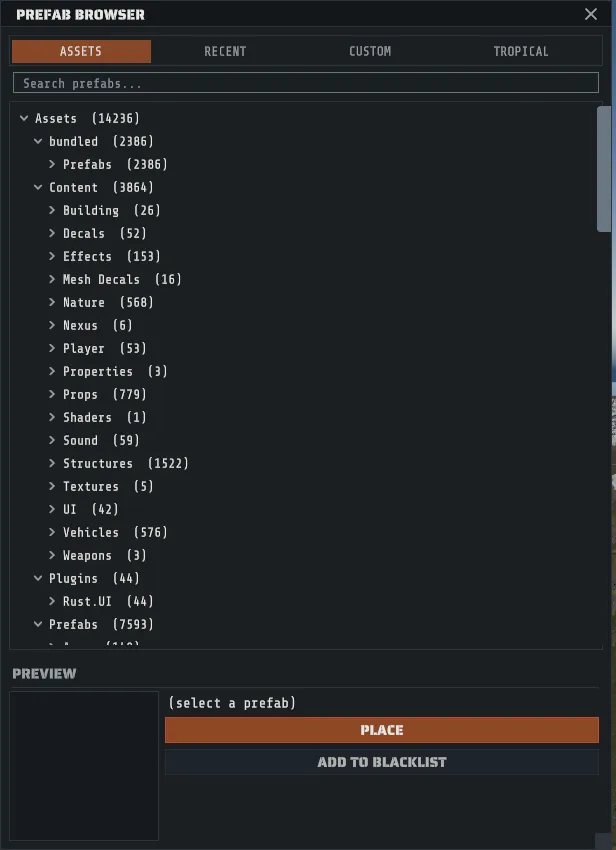
The Prefab Browser
Section titled “The Prefab Browser”R opens it, and so does the rail button under the divider. Three tabs across the top:
| Tab | What is in it |
|---|---|
| ASSETS | Every prefab the game has, as a folder tree built from the prefab paths |
| RECENT | The last twenty you placed, newest first |
| CUSTOM | Your own saved collections. See Custom prefabs |
The search box filters the whole tree, and while you are searching every folder opens so matches are visible. Clear the search and the tree goes back to the folds you left it in. Use the search to narrow long lists.
A prefab whose name is red is on the known-bad list: one the game removed, or a broken effect. Hover it for the reason. You can still place it, and the Map Validator reports it.
After a Rust update
Section titled “After a Rust update”When Rust updates, Creator compares the new build’s prefabs with the last Rust build it saw on this PC and lists what changed at the top of ASSETS:
| Group | What is in it |
|---|---|
| New in Rust build | Prefabs this build has that the last one did not. They preview and place like any other, and they carry a NEW tag wherever they appear in the tree. A prefab that only moved says where it came from. |
| Removed in Rust build | Prefabs this build no longer has. They cannot be placed. A map that still uses one gets the check when you save, because a live server skips it. |
| Staging branch only, build number | Prefabs Rust’s staging branch has that the live build does not. They cannot be placed while Creator reads the live build. |
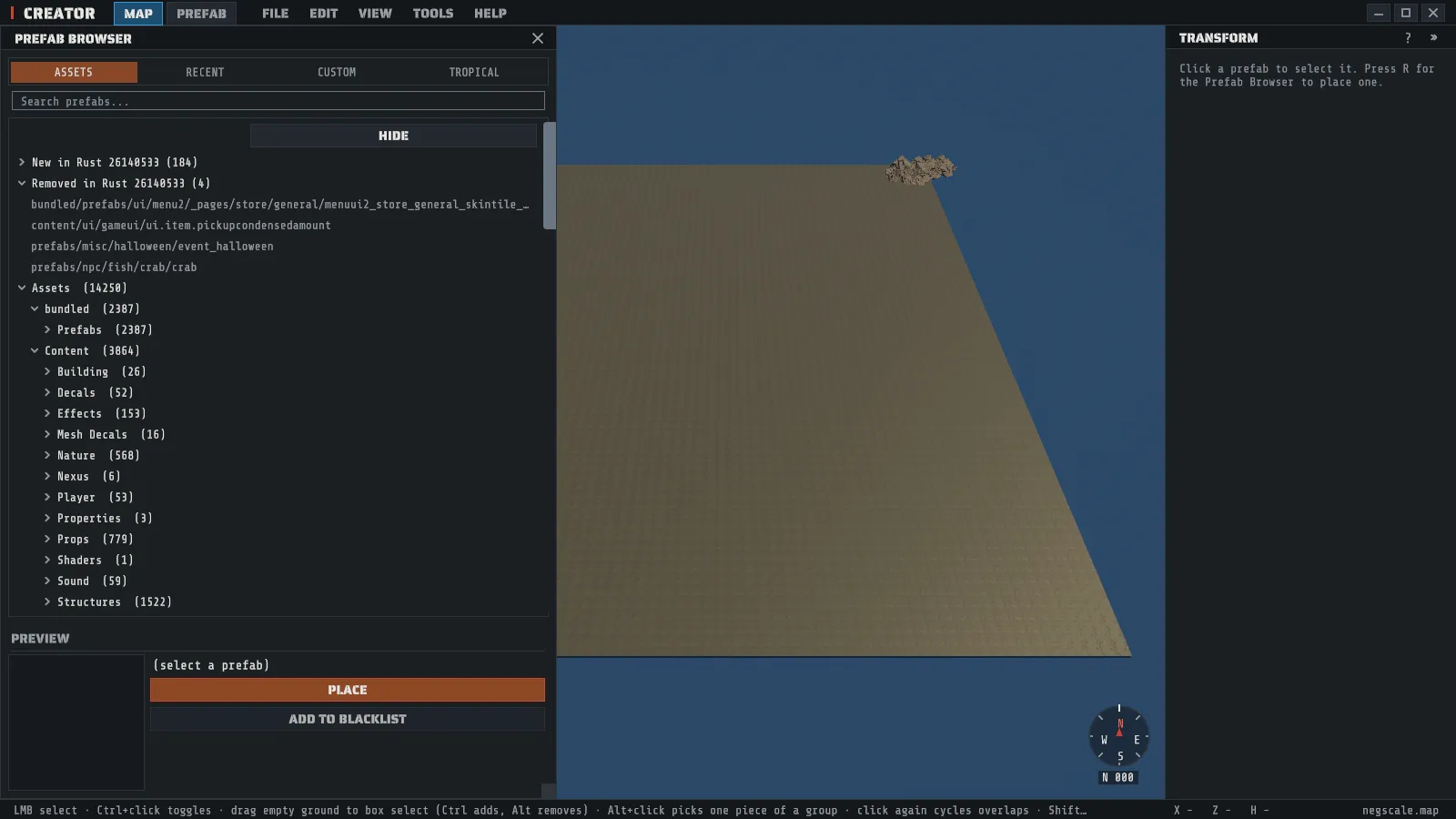
The first time Creator opens a new build, a note says how many prefabs changed. HIDE puts the lists away until the next Rust build, and SHOW brings them back. The lists say what is new and what is gone; a prefab that changed in place without moving is not listed.
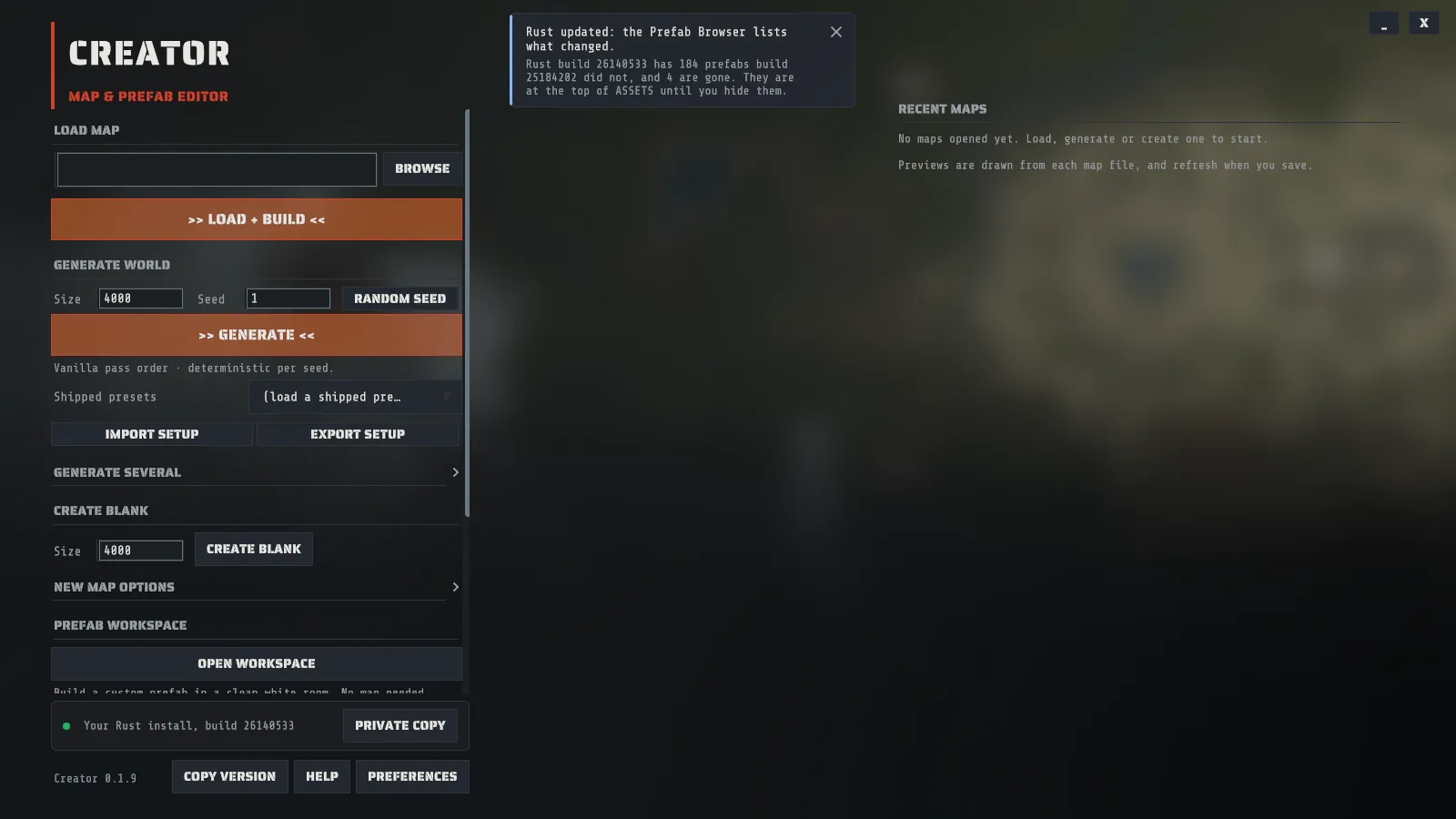
On the first run there is nothing to compare with yet, so the lists appear after the next Rust update. Creator keeps a short list of each Rust build’s prefabs it opens to compare with (see Your data). If you keep a private copy of an older Rust build, Creator compares with that copy straight away.
The staging group appears when Rust - Staging Branch is installed in Steam. Creator reads only its list of prefabs, never its game files, and only while Steam is not updating it. If you open Creator on the staging branch’s own files, those prefabs carry a STAGING ONLY tag instead, and saving a map that uses one asks first.
Preview before you place
Section titled “Preview before you place”Click a leaf row once to select it, and the preview pane below the tree renders that prefab in 3D. Drag inside the preview image to spin the model.
The first preview from a prefab group loads slowly; later ones are quick. The preview says what is
happening while you wait:
Loading the prefab library: 35 % with the percentage climbing, then finishing, then Preparing and
the prefab’s name. If the prefab has no render mesh at
all it says (no render mesh), and that is the answer rather than an error: a few prefabs
are logic with nothing to draw.
If you press PLACE while the preview is still loading, the pane adds that PLACE is waiting, the button greys out, and the prefab is placed as soon as it is ready. You do not need to press it again.
Keep a prefab out of generation
Section titled “Keep a prefab out of generation”ADD TO BLACKLIST, under PLACE in the preview pane, adds the highlighted prefab’s path to the
Blacklist of Procedural Generation, so a run from that panel leaves
that prefab out. It changes nothing on the open map. If an entry already in the list blocks the prefab
(its own path, or a shorter fragment such as rock), nothing is added and Creator names that entry. To
allow the prefab again, delete its path from the Blacklist field in the panel.
The list belongs to the panel: a generation started from the start screen does not read it, and it is empty again at the next launch unless you save a preset in the panel.
Three ways, and they all do the same thing.
- PLACE in the preview pane.
- Double-click the row in the tree.
- Click a card’s PLACE in the CUSTOM tab, for a whole saved collection.
A placed prefab lands where the center of your view meets the ground. When the center of the view
shows no ground (you are looking at the sky, or past the edge of the map), it lands 25 meters in front
of the camera, sitting on the terrain. Either way it goes onto the
undo stack as one step named after it, so the EDIT menu’s undo entry reads Undo Place plus the
prefab’s name and you can see what Ctrl+Z will take back. Point the camera where you want the thing
before you place it, then use the gizmos: see
Select and transform.
To place many prefabs at once by rule, over the whole map, a box or a circle, use Scatter. To lay them where you drag, use the prefab brush.
Keep a busy map workable
Section titled “Keep a busy map workable”A generated 4000 map holds tens of thousands of prefabs, so the tools that matter are the ones that get things out of your way.
| Tool | Where | What it is for |
|---|---|---|
Scene Hierarchy (H) | The rail, or VIEW | Every placed prefab as a searchable list, one row per prefab by name (hover a row for its full path). Click a row to select it, then press F to fly to it |
| The ALL / LOCKED / HIDDEN / NEG filters | In that panel | Show only what you have locked, only what you have hidden, or only the prefabs with a negative scale axis |
| Sort and REFRESH | In that panel | List by Name, Most recent (what you placed, pasted or generated last comes first), Least recent (the order the map loaded them, the default), or Distance to camera (nearest first). Your choice lasts until you close Creator. REFRESH updates the distances after you move |
Lock (Ctrl+Shift+L) | EDIT, the context menu, the inspector’s ... | Keeps a prefab selectable but refuses to move or delete it |
Hide (Ctrl+Shift+H) | The same three places | Takes it out of the view and out of the way. Unhide All is Ctrl+Alt+H |
| Selection groups | Ctrl+Shift and a digit to assign, Ctrl and the digit to recall | Named-by-number sets of prefabs you keep coming back to |
Right-clicking a prefab (without dragging, because a right-drag flies the camera) opens the context menu: Lock, Hide, Duplicate, the three Mirror Duplicate rows, Snap to Ground, Copy Transform, Copy Position, Copy Rotation, Copy Scale, Paste Transform, Copy Prefab Path, Delete, and the workspace entries from Custom prefabs. The transform entries are explained on Select and transform.
Copy Prefab Path puts the path of the prefab you right-clicked on the clipboard, for example
assets/bundled/prefabs/autospawn/resource/logs_dry/dead_log_a.prefab. It is the spelling the other
fields read, so it pastes straight into the Blacklist of
Procedural Generation or the Prefab path of a
Scatter item. The same entry is on the ... menu at the top of the inspector.
Replace prefabs
Section titled “Replace prefabs”EDIT > Replace Selection with Browser Prefab swaps everything selected for the prefab highlighted in the Prefab Browser. Each new prefab takes over the position, rotation and scale of the one it replaces.
EDIT > Replace Prefabs… opens a window that does the same job with two more controls: how far the replace reaches, and an adjustment for a replacement that does not line up with what it replaces.
| Control | What it does |
|---|---|
| Replace what | The selection, or Every prefab of the selected types. With the second, select one barrel and every barrel of that type on the map is replaced; select a barrel and a crate and both types are. Locked prefabs are left alone |
| Offset X (m), Y, Z | Moves each replacement along the axes of the prefab it replaces: Y is that prefab’s own up, wherever it points. The offset scales with the prefab, so one number suits copies placed at different sizes |
| Turn X (degrees), Y, Z | Turns each replacement about its own axes, on top of the rotation it takes over |
| Scale by X, Y, Z | Multiplies the scale it takes over. Each must be above zero, so a replace can never mirror a prefab |
Two prefabs rarely share a pivot, a facing or a size, so a straight swap can leave the new ones sunk, turned or too small. Replace one first, look at it, undo, set the adjustment and replace them all.
- Select the prefabs to replace, or one of each type.
- Highlight the replacement in the Prefab Browser.
- Choose EDIT > Replace Prefabs…, set Replace what and, if needed, the adjustment.
- Read the line under Replace what: it says how many prefabs will be replaced and with what, and how many of them are hidden (“including 12 hidden”). Hidden prefabs are replaced too; lock the ones to keep.
- Press REPLACE WITH BROWSER PREFAB.
The whole replace is one undo step, however many prefabs it touches. RESET ADJUSTMENT puts the offset and the turn back to zero and the scale back to one.
Text from letter prefabs
Section titled “Text from letter prefabs”TOOLS > Text from Letter Prefabs… lays out a line of text from the game’s own letter and number prefabs: the stencils on the walls of the Military Tunnels, one prefab for each character.
The game has capital letters A to Z and numbers 0 to 9, and nothing else. There is no lower case, no punctuation and no accented letter among Rust’s prefabs. Lower case is placed as capitals, a space leaves a gap, and any other character is left out; the window names what it left out before you place anything.
| Control | What it does |
|---|---|
| Text to place | The line of text. Press Enter in the field to see what it will place |
| Letter height (m) | How tall a capital letter stands. The stencils are 0.23 meters tall as the game ships them, so every character is scaled to the height you ask for |
| Letter spacing (%) | The gap between neighboring characters, as a percent of the letter height. The characters keep their own widths, so an I takes less room than a W |
| PLACE TEXT | Places the text standing upright where the center of your view meets the ground, facing you, as one undo step. Every character’s bottom edge is on that ground, so letters and numbers share one line even though the game’s numbers are a little taller than its letters |
The placed text stays selected, so the gizmos move, turn or resize it as one: see Select and transform. Each character is a flat panel with no thickness, made to sit against a wall, so move the text onto a surface or lay it on the ground rather than leaving it standing in the open. The line under the fields says how many prefabs the text takes and how wide it is.
Monuments are prefabs with terrain attached
Section titled “Monuments are prefabs with terrain attached”A monument carries its own authored terrain work: the height it flattens, the ground textures it paints, the topology it claims, the holes it cuts. Generation applies all of that as it places the monument, which is why a generated map’s monuments sit in ground that fits them.
A monument you place or move by hand does not stamp itself. The Prefab Modifiers section of the transform inspector is how you apply it: one button per mask that monument actually carries, each one undo step, at wherever the monument is standing now. So the sequence for moving one is move it, repair the ground it left with sculpting and painting, then apply its masks at the new position. Where monuments sit on a generated map, and why, is Monuments and where they go.
Refresh Spawn Instances, in the same section, rebuilds the prefab’s own spawned contents.
Break a monument into its pieces
Section titled “Break a monument into its pieces”Select one monument on the map, right-click it and choose Break Monument Into Prefabs. Creator asks before it changes anything.
- Only a monument built entirely from placeable prefabs can be broken. If any part of it is geometry that exists only inside the monument, the break is refused with the number of pieces it could not carry, and the monument is left exactly as it was. Small caves, lakes, oases, canyons, the jungle ruins, the desert military bases and the underwater labs break cleanly; most large monuments do not.
- The confirm says what happens. Each piece becomes its own placed prefab you can move, copy or delete. The monument’s own function is lost: its map marker, loot, NPC spawns, puzzles and triggers do not come with the pieces. The ground under it stays as it is.
- A piece the monument changed is kept as it was. Where the monument’s version of a piece differs from the game’s standard one, that piece is saved as a custom prefab in your library (the CUSTOM tab of the browser) and placed as those prefabs, so it looks the same after the break. The whole broken monument is saved there too, as one pack you can place again elsewhere.
- The pieces stay one object until you ungroup them. Clicking any piece selects the whole group, so it
moves as one. Hold
Altwhile clicking to pick a single piece, or right-click and choose Ungroup Custom Prefab to let every piece move on its own. - One undo puts the monument back. The files saved to your library stay there.
Breaking works on the map. To rearrange the pieces in the prefab workspace, break the monument first, select the pieces and use Edit Selection In Workspace.
Negative scale
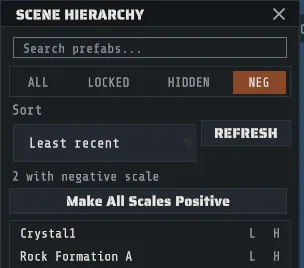
Section titled “Negative scale”A mirrored prefab (any scale axis below zero) looks right in the editor but breaks collision on a server. The NEG filter in the hierarchy finds them, Make All Scales Positive flips them all positive as one undo step, and a preference clamps typed values so they cannot come back. The details are on Select and transform.
Importing prefabs from elsewhere
Section titled “Importing prefabs from elsewhere”| Source | How |
|---|---|
| A building from the CopyPaste plugin | FILE > Import CopyPaste… reads the plugin’s JSON export and places its entities as prefabs, one undo step. A wired build keeps its wiring: the connections between the objects that were placed, and the settings Creator has a row for (a branch’s amount, a counter’s target, a timer’s seconds, a radio’s frequency, a camera’s identifier), land in the map’s IO wiring in the same undo step. The message after the import says how many wires and settings came across and how many were left out. |
A RustEdit custom prefab (.prefab) | Put it in your custom-prefab folder and it appears in the CUSTOM tab. See Custom prefabs |
| A whole RustEdit map | See Import a RustEdit map |
What Creator will never do
Section titled “What Creator will never do”Creator only places prefabs that already exist in Rust. It will not build custom items with custom models, because that needs modified client files and puts everyone who plays your map at risk of an anti-cheat ban. Every prefab in the browser is stock content out of your own install, which is also why the browser is empty until Creator has opened your Rust install.